Teams
A team in Daylee represents a group of people who share a daily standup. You can create multiple teams for different projects, departments, or working groups. A person can belong to multiple teams and submit separate updates for each.
Creating a Team
Who can do this: Daylee admins
Use /daylee create-team, or open the App Home tab, click Manage Teams in the Administration section, and click Create Team in the footer.
Required fields:
Team name - must be unique within your Slack workspace
Optional fields:
Description - helps members understand the team’s purpose
The person who creates a team automatically becomes its administrator. The team is created with default settings that you can customize afterwards.
Daylee admins are the installer and every Slack workspace admin by default; other Daylee admins can be promoted from the Daylee Admins dialog. See App Home — Administration.
Member Roles
Each team member has one of two roles:
Role |
Capabilities |
|---|---|
Member |
Submit updates, view reports, set personal availability, view team members |
Admin |
Everything a member can do, plus: add/remove members, promote/demote admins, configure team settings, generate on-demand reports, send prompts manually, delete the team |
Managing Members
Adding members
Who can do this: Team admins
Use /daylee add-member or select Members from the team overflow menu in the App Home tab. Select one or more Slack users to add to the team.
Removing members
Who can do this: Team admins
Use /daylee remove-member or remove members through the Members view in the App Home tab.
Promoting and demoting admins
Who can do this: Team admins
From the Members view, use Change Role in a member’s overflow menu to switch between admin and member roles. A team must always have at least one admin.
Team Settings
Who can change settings: Team admins
Team configuration is split across two modals, both accessible from the overflow menu on your team card in the App Home tab.
Team Settings
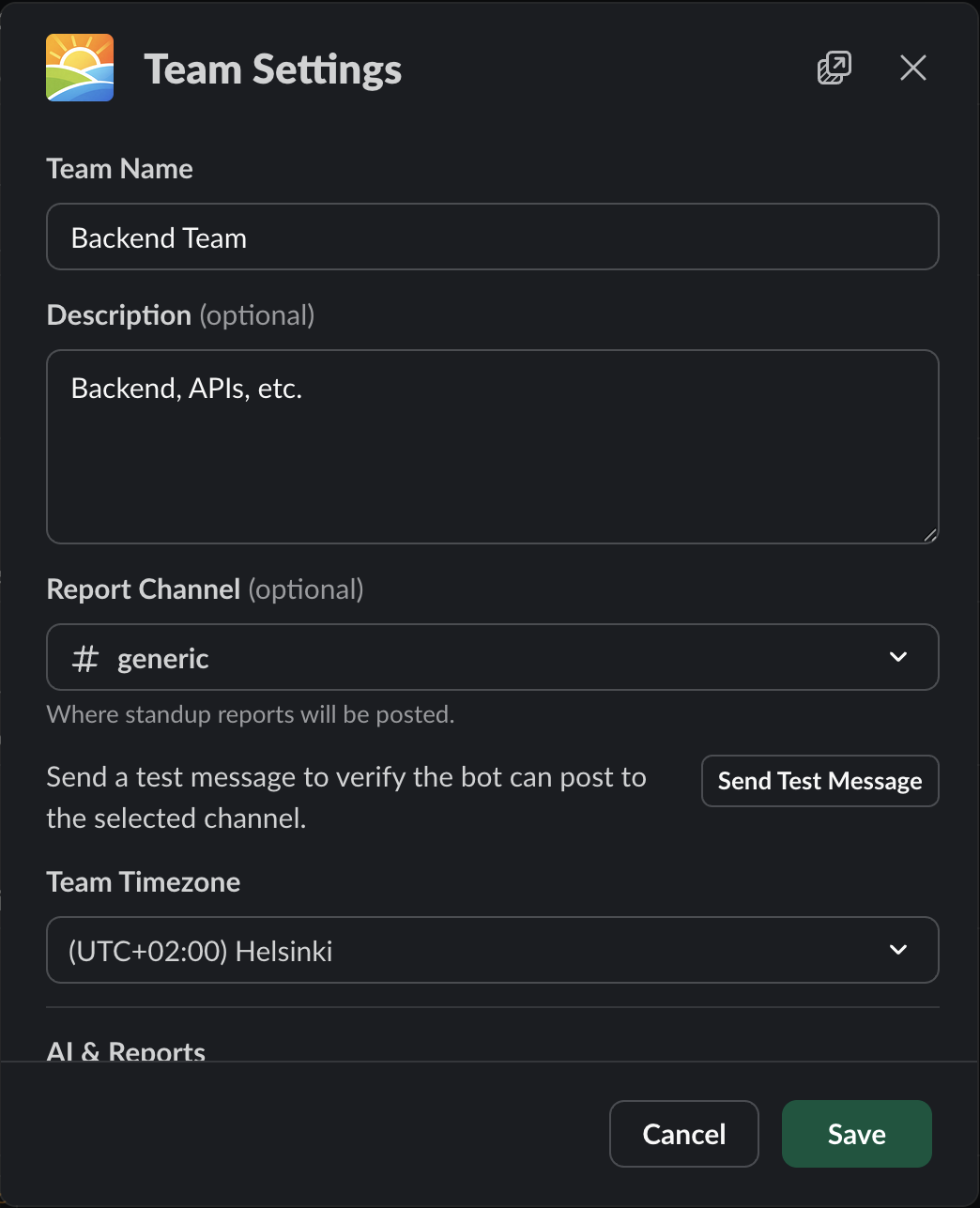
Team settings.
Open Team Settings to configure:
Report channel
The Slack channel where reports are posted. Daylee must be a member of the selected channel.
See also: Integrations for connecting GitHub, JIRA, or Linear to enrich reports with development activity.
Project context
A text description of your team’s project or work (up to 3,000 characters). Daylee uses this context to generate more relevant AI summaries. For example:
“We’re building a mobile banking app. The team focuses on the payments module. Current sprint goal: complete the recurring payments feature.”
You can include project name, description, goals, milestones, key terminology, and team structure. The more context you provide, the better the AI summaries will be. Changes apply to future reports only.
Timezone
The team’s timezone, used for scheduling prompts and reports. Individual members can override this with their own timezone preference.
Daily Standups
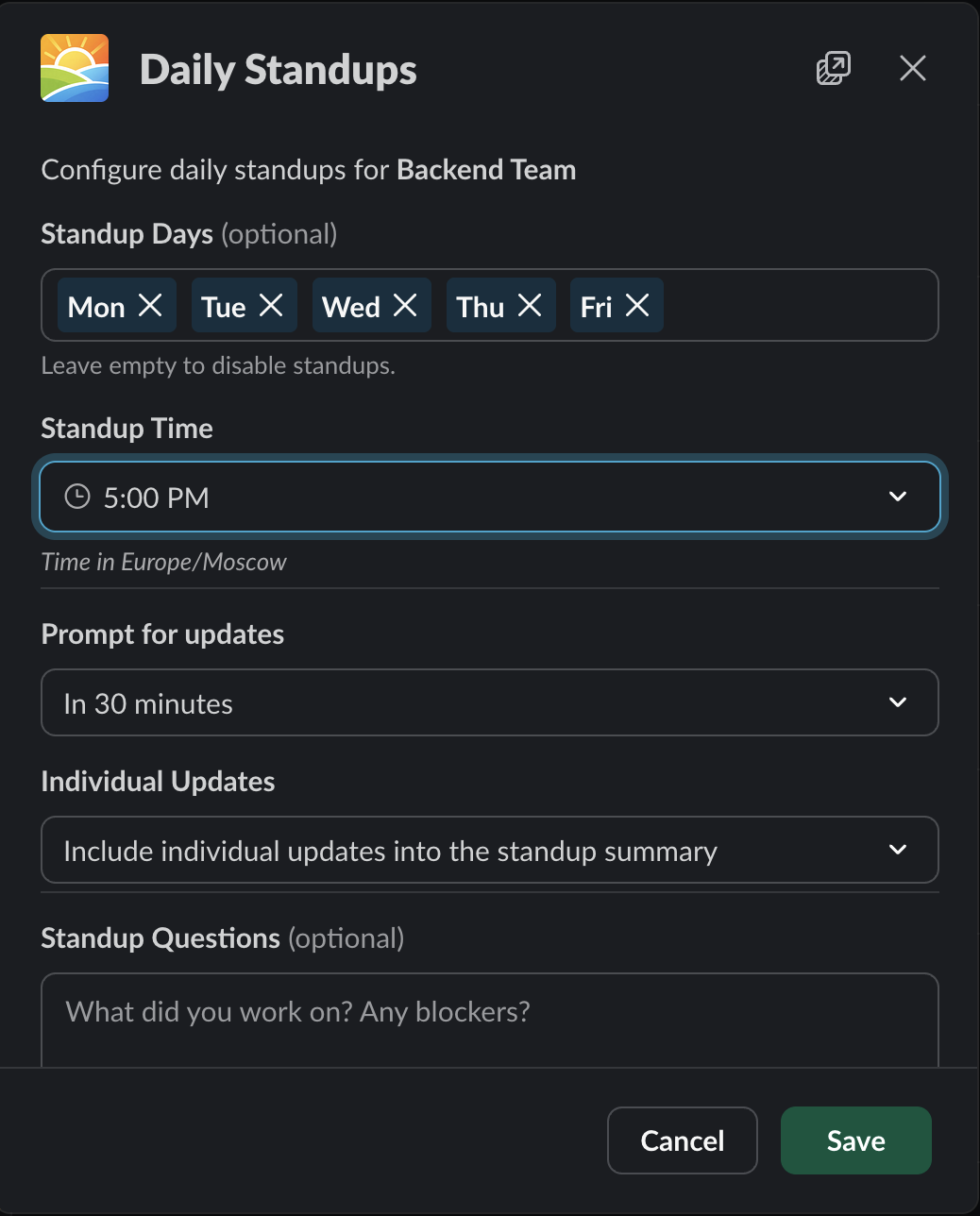
Daily standups settings.
Open Daily Standups to configure:
Prompt schedule
Choose which days of the week and what time prompts are sent. See Standup Settings for details.
Reminder timing
How long after the initial prompt Daylee sends a reminder to members who haven’t responded yet. Options range from 10 minutes to 24 hours, or disabled entirely.
Individual update behavior
Choose what happens when a member submits an update:
Include in summary (default) — update is collected and included in the next report
Publish immediately — update is posted to the report channel right away
Don’t publish — update is collected but not posted (only visible in reports)
Custom prompt text
Customize the questions Daylee asks team members. If not set, Daylee uses a default prompt. Custom prompts let you tailor the standup to your team’s needs.
Deleting a Team
Who can do this: Daylee admins
Open Team Settings for the team and click Delete Team in the Danger Zone. The Danger Zone is visible only to Daylee admins. Deleting a team is a permanent action. All team data (members, updates, reports) is retained in the database but the team becomes inactive and no longer collects updates or generates reports.